

In this procedure, you will create an application called CreateHelpDeskCase, which allows you to create a new help desk case by entering values in the required fields. A new Case_ID number is returned once you have successfully created the application.
 Creating the CreateHelpDeskCase application
From Mobile Web Studio, select Applications in the left pane, select New in the Application Manager Status menu, and click the New button to launch Application Builder.
Click the down arrow to the right of Add, and select Web Service Element.
On the Web Service Element Definition window, make sure the WSDL option is selected, then identify the Web service to use.
In WSDL URL, enter http://ITSM60Demo.sybase.com/arsys/WSDL/public/ITSM60Demo/HelpDesk_Submit_Service.
 Replace the string ITSM60Demo with
the host name of the middle-tier server specific to your own installation.
Replace the string ITSM60Demo with
the host name of the middle-tier server specific to your own installation.
For example:
http://uademo-remedy.try.sybase.com/arsys/WSDL/public/ITSM60Demo/
HelpDesk_Submit_Service
Click Get Method. One method displays, HelpDesk_Submit_ServicePortType:Create_Helpdesk_
Case.
Make sure Enable Grid Rules is selected.
Next to Content XSLT, click Create. The Web Services Output XSLT Template Customization window appears.
Name – enter CreateHelpDeskCase.
Roles – click Add All to add all the roles to Assigned Roles.
Select Output Parameters for Display – highlight
a parameter, such as Case_ID.
The value displays in Update Output Display Name.
Select Node Level That Contains One or More Child Records – click Select.
The Select Node Level window appears. Select “/,” and click OK.
In the Web Services Output XSLT Template Customization Window, click Save, then click OK in the confirmation window.
In the Web Service Element Definition window, click Input and enter the default values for the fields you want to update. For this example, use these values (or leave blank if omitted):
Parameter |
Default value |
|---|---|
userName |
Demo |
Case_Type |
Incident |
Category |
Networking |
Department |
Marketing |
Description |
Test |
Hotlist |
No |
Item |
Dial-up |
Office |
#3 Sybase Dr. |
Phone_Number |
925-236-5000 |
Priority |
Low |
Region |
USA |
Request_Urgency |
Low |
Requester_Login_Name |
Demo |
Requester_Name |
Demo |
Site |
25 Bay St, Mountain View, CA |
Source |
Requester |
Status |
New |
Summary |
New case |
Type |
Connectivity |
Click Next.
When you are asked if you want to proceed even though the parameters are not all filled in, click OK.
In the Define window, select Records Contain Labels, accept 1, and click Next.
In the Filter window, click Next.
In the Configure Parameters window, configure the input parameters.
Under Configure, select the boxes for the parameters you want.
The parameters move to the bottom of the list as they
are selected, in the order they are selected. To make it easier
to follow the example, select parameters in the order listed in Table 6.
For this example, select all parameters except:
_HEADER.AuthenticationInfo.password
service_wsdl
Create_Helpdesk_Case.Pending
_HEADER.AuthenticationInfo.timeZone
_HEADER.AuthenticationInfo.locale
Create_Helpdesk_Case.Escalated
Create_Helpdesk_Case.WorkLog
service_method
Create_Helpdesk_Case.Create_Time
_HEADER.AuthenticationInfo.authentication
Create_Helpdesk_Case.Orig_Submitter
For the selected parameters, modify the parameter values as needed. See Table 6 for values used in the example; and see Table 2 for a description of the parameter settings.
For the parameters with Display Type set to “Linked”—Category,
Type, Item, Region, Site, and Department—the Add and Clear
buttons display. In a later step, “Linking parameters to add multilevel lookup”, you will use these buttons to
link parameters for multilevel lookup.
Parameter |
Display name |
Default value |
Display type |
Kind |
Required |
|---|---|---|---|---|---|
_Header.AuthenticationInfo.userName |
User Name |
Demo |
None |
Update |
No |
Create_Helpdesk_Case. Requester_Name |
Requester_Name |
Demo |
Text Field |
Update |
Yes |
Create_Helpdesk_Case. Phone_Number |
Phone_Number |
925-236-5000 |
Text Field |
Update |
No |
Create_Helpdesk_Case. Requester_Login_Name |
Requester_ Login_Name |
Demo |
Text Field |
Update |
Yes |
Create_Helpdesk_Case. Request_Urgency |
Request_ Urgency |
Low |
Text Field |
Update |
No |
Create_Helpdesk_Case. Case_Type |
Case_Type |
Incident |
Text Field |
Update |
Yes |
Create_Helpdesk_Case. Summary |
Summary |
New case |
Text Field |
Update |
Yes |
Create_Helpdesk_Case. Description |
Description |
Test |
Text Field |
Update |
Yes |
Create_Helpdesk_Case. Priority |
Priority |
Low |
Text Field |
Update |
Yes |
Create_Helpdesk_Case. Category |
Category |
Networking |
Linked |
Update |
Yes |
Create_Helpdesk_Case.Type |
Type |
Connectivity |
Linked |
Update |
Yes |
Create_Helpdesk_Case.Item |
Item |
Dial-up |
Linked |
Update |
Yes |
Create_Helpdesk_Case. Region |
Region |
USA |
Linked |
Update |
No |
Create_Helpdesk_Case.Site |
Site |
25 Bay St, Mountain View, CA |
Linked |
Update |
No |
Create_Helpdesk_Case. Department |
Department |
Marketing |
Linked |
Update |
No |
Create_Helpdesk_Case. Office |
Office |
#3 Sybase Dr. |
Text Field |
Update |
No |
Create_Helpdesk_Case. Source |
Source |
Requester |
Text Field |
Update |
Yes |
Create_Helpdesk_Case. Status |
Status |
New |
Text Field |
Update |
Yes |
Create_Helpdesk_Case. Hotlist |
Hotlist |
No |
Text Field |
Update |
No |
Select Next.
The Preview window displays. In Element Name, enter CreateHelpDeskCase,
and click Finish.
If prompted to fill in all required fields for preview,
click OK to bypass.
In the Application Builder, click Save.
On the Finish window, make this entry (accept the defaults for all other fields):
Roles tab Click Add All to add all roles to this application.
Click Finish to save the application, and click OK to confirm.
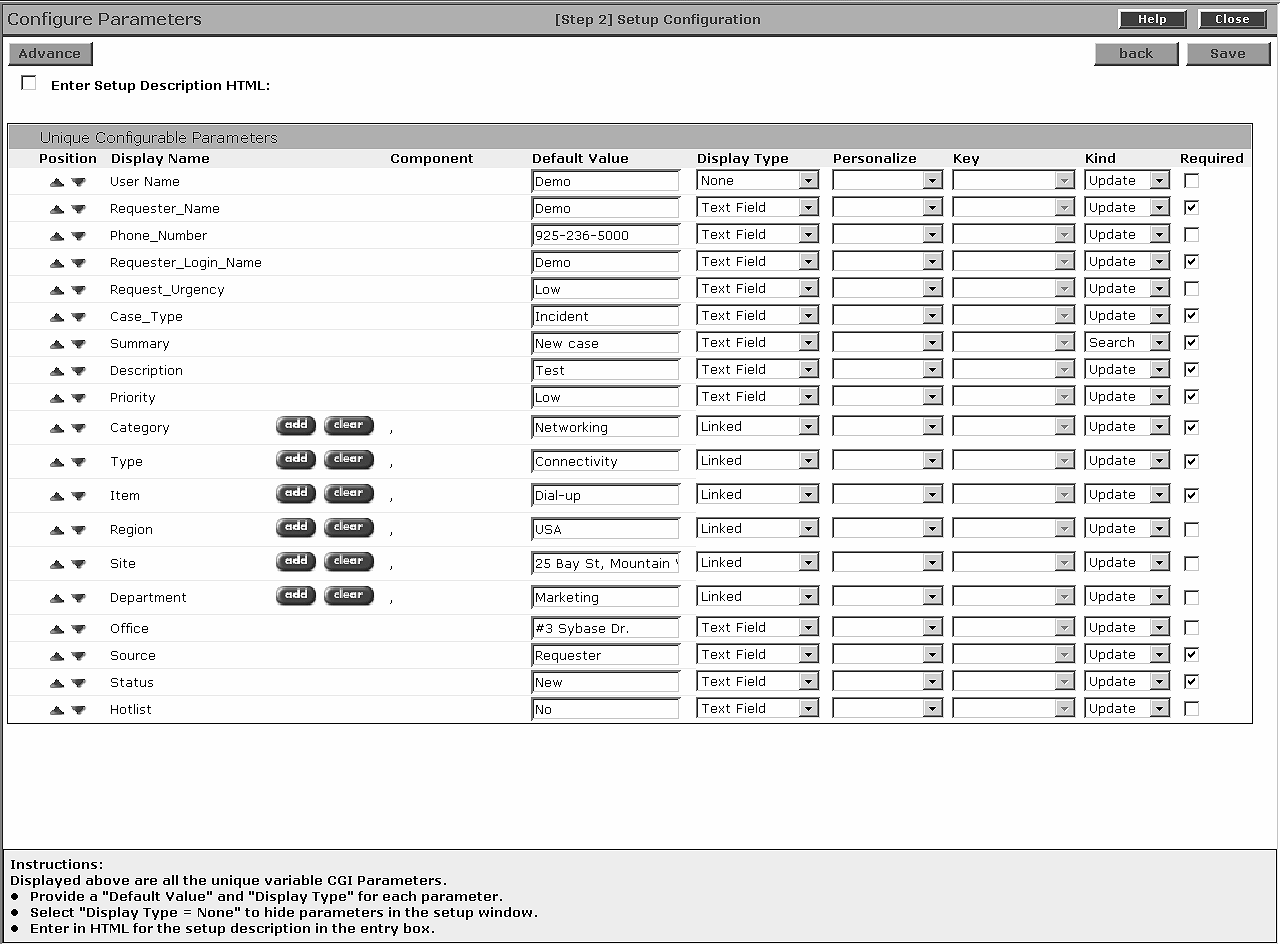
Optional. In Application Builder, select Params, then click Next to view the parameter settings as shown in Figure 10, then click Close. If you choose to change the parameter settings, be sure to click Save; then return to Application Builder, click Save, and OK to confirm.
Figure 10: CreateHelpDeskCase parameters
Click Close in the upper-right corner to close the Application Builder window.
When you return to the Mobile Web Studio main window,
select New from the Application Builder Status menu. The CreateHelpDeskCase application
displays in the detail pane.
In Mobile Web Studio, right-click the CreateHelpDeskCase application in
the detail pane, and select Approval Status | Approved.
Click OK.
Select Approved from the Application Manager Status
menu. You see the newly approved CreateHelpDeskCase application
in the detail pane.
Optional. Select CreateHelpDeskCase and
click Preview to view the application. The lists are not yet populated.
The Case_ID at the bottom is used when a user saves a new
record, and a Case_ID is assigned.
You have successfully created the Remedy application.
