

Chapter 3 Working with Repository Documents
Freezing document versions
There are various ways to freeze a document (and any objects it contains) in the current branch.
- Right-click a document, folder, or root node and select the Freeze command. This command is available only if you have the Freeze versions right and the appropriate permissions on the documents.
- Use the Freeze tool on the property sheet of a:
- document (Versions tab)
- branch (Members tab – multiselection available)
- configuration (Members tab – multiselection available)
- Before or after check in using the options in the Check In Document and Check In Project windows (see Checking in Changes to Documents Stored in the Repository)
You must have the Write or Full permission to freeze a document version.
 Using the Freeze after check in repository option
This option specifies that the Freeze after check in option in the Check In window is selected by default. See Repository Options.
 To freeze a document version from the repository browser:
- Right-click a document node in the repository browser and select Freeze to open the Freeze Version dialog box:
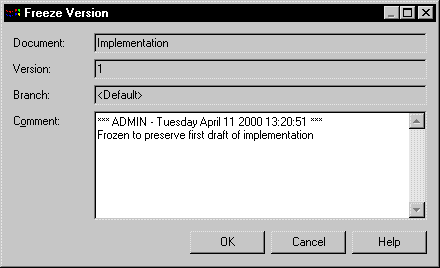
- Enter an appropriate comment in the Comment box.
- Click OK to freeze the version. Further changes to the document will be made to a new version.
|
Copyright (C) 2008. Sybase Inc. All rights reserved.
|
|