

Chapter 5 Browsing the Repository via the Web
Search
You can search for PowerDesigner model objects in the Repository Web Browser, by clicking the Search tab. The Read permission suffices to find objects. Note that you cannot search external application documents.
 To search for objects in the repository web browser:
- Click the Search tab to access the Search screen:
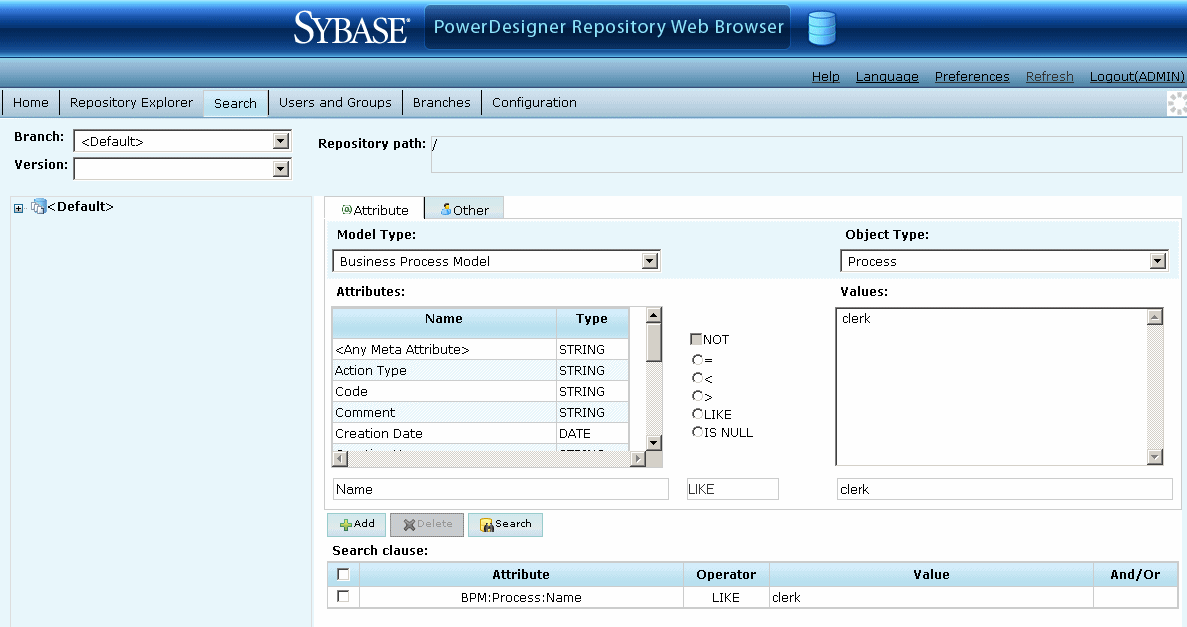
- [optional] Select a branch, model, and model version on the left of the Search screen to restrict your search. By default, you search the entire repository.
 Reducing search time
Searching the entire repository may take a long time. You should, wherever possible, try to restrict the scope of your search.
- [optional] Select a model type to search. By default, you search all model types.
- [optional] Select a object type to search. By default, you search all object types.
- Select a property, operator and value to search against. Depending on the property that you select, the choice of operator may be restricted and/or values may be suggested.
- Click the Add button to add the complete search clause to the Condition table.
- [optional] Create additional search clauses and add them to the Condition table, choosing one of the following conjunctions:
- AND – results must satisfy all clauses
- OR – results must satisfy one of the clauses
- [optional] Click the Others tab and specify additional search clauses based on creation and modification dates and users:
- Click the Search button to start your search.
Your search results are displayed. Click on an object to display all its available properties.
- [optional] Click the Report button to generate a PDF version of the results for printing. Click the Back button to modify your search string.
Special characters
The following special characters allow you to use basic regular expressions when searching for the name or code of an object or attribute values:
- * - none to any number of characters
- ? – exactly one character
- \* - * is a normal character
- \? - ? is a normal character
- \\ - \ is a normal character
- true/false - Boolean value (True is when the check box is selected in the interface)
For example:
W* finds "Work" and "Washington"
*IST finds "List" and "Specialist"
????ER finds "Writer" and "Seller" but not "inner"
COLN? finds "COLN1" and "COLN2"
*_emp_??? finds "Div_emp_fun" and "Div_emp_idn"
Note that the case sensitivity of your searches depends on your DBMS.
|
Copyright (C) 2008. Sybase Inc. All rights reserved.
|
|