

The presentation style you select for a report determines the format InfoMaker uses to display the report in the Design view. InfoMaker 10.5 includes a new report wizard that lets you create a report using a TreeView presentation style. With the TreeView presentation style, you can group hierarchical data and display the data in collapsed or expanded format. The TreeView report style cannot be used with the Web report.
You use the TreeView report wizard to create a TreeView report with one TreeView level. You add additional levels to the TreeView by selecting Rows>Create TreeView Level from the menu bar.
This sample TreeView report uses the department and employee tables in the EAS Demo database and has two TreeView levels. The first level is the department name. The second level is the city where each employee resides:
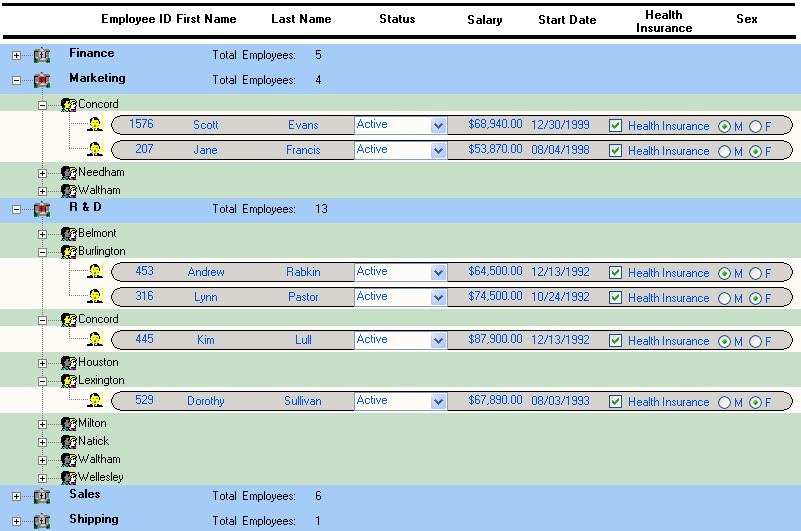
When you use a TreeView report, you click the state icon to expand or collapse a node. The state icon is a plus (+) sign when the node is collapsed and a minus (-) sign when it is expanded. When a node is expanded, connecting lines display by default to show more detail and indicate how the parent data connects with child data. When a node is collapsed, only the parent data displays and the detail data does not display.
For more information, see “TreeView presentation style” in the User’s Guide.
